OBIEE Tracking
Graduation Tracking Status for Students in "Applied" Status
Summary of Steps
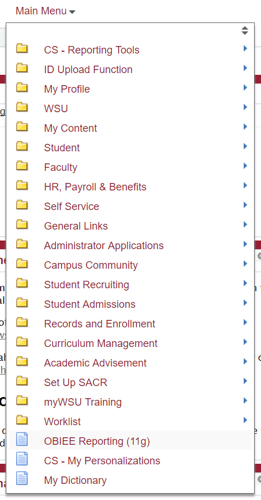
Within myWSU, select Main Menu, then select OBIEE Reporting.
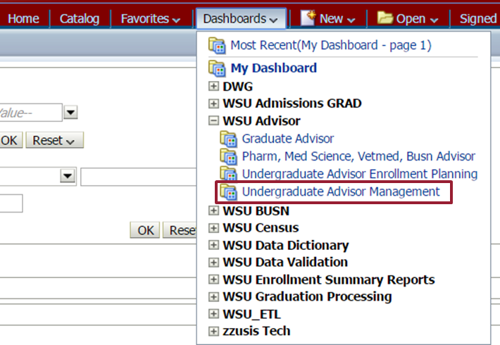
Within OBIEE, select Dashboards, then select Undergraduate Advisor Management.
Select the "Apply for Graduation by Term" tab, then select Graduation Processing.
Sign-in to myWSU, select Main Menu, then select OBIEE Reporting from near the bottom of the dropdown list.
You may need to disable your browser's pop-up blocker.
Select Dashboards, open the WSU Advisor dropdown list, then select Undergraduate Advisor Management.
Select the “Apply for Graduation by Term” tab.

Select Graduation Processing in the upper left corner of the page to view the report.
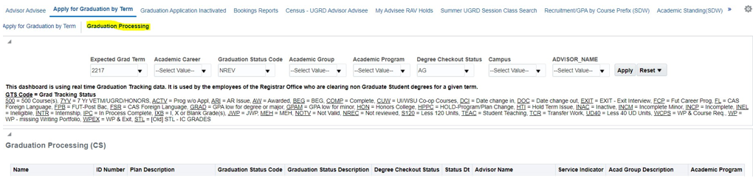
Input sort parameters from drop downs
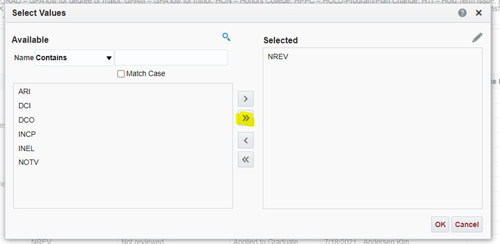
To "Select All", click "search" at the bottom of the dropdown. This will open a box containing graduation status values that allows users to select all or pick and choose values. This is especially useful for the Grad tracking status field, as there are many and it is often desired to view all at one time.
The "Advisor Name" sort field is not currently working as expected in OBIEE, but we find that exporting to Excel allows for better presentation and sorting of OBIEE returns anyway.
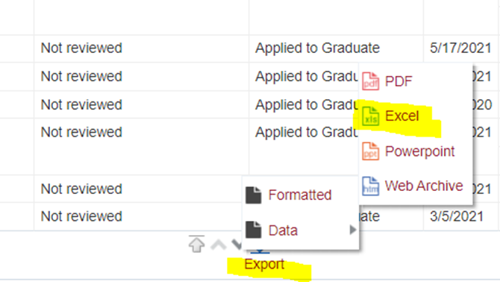
Export to Excel
The export function is accessed at the bottom of the OBIEE report page.
Once exported, normal Excel data organization and analysis features are available.